
QuickDial: one call at the counter
A customer calls. Follow what the clerk sees, from the account opening to “where’s my order?”
-
 Step 1 of 5
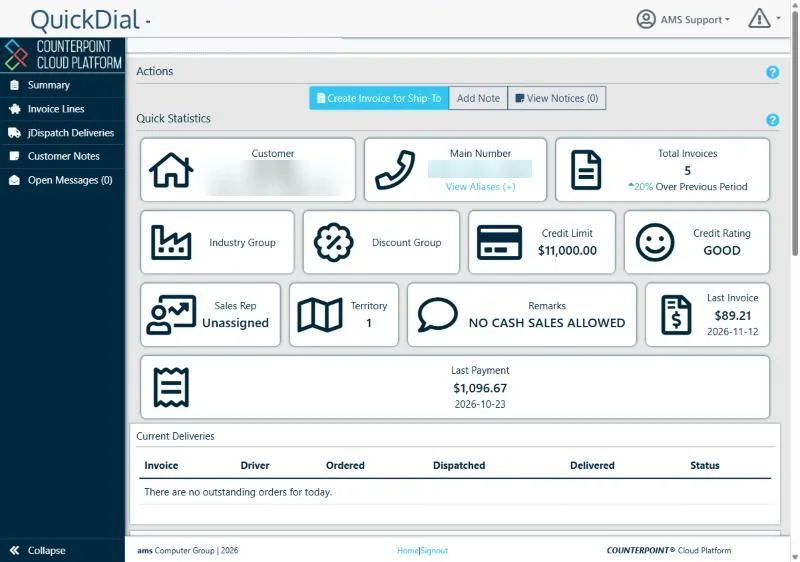
The account opens as you pick up
The caller’s number comes through from the phone system and QuickDial opens on their account. Credit limit and rating, remarks, last invoice and last payment are on screen before the clerk says hello. Here the remarks say no cash sales.
-
 Step 2 of 5
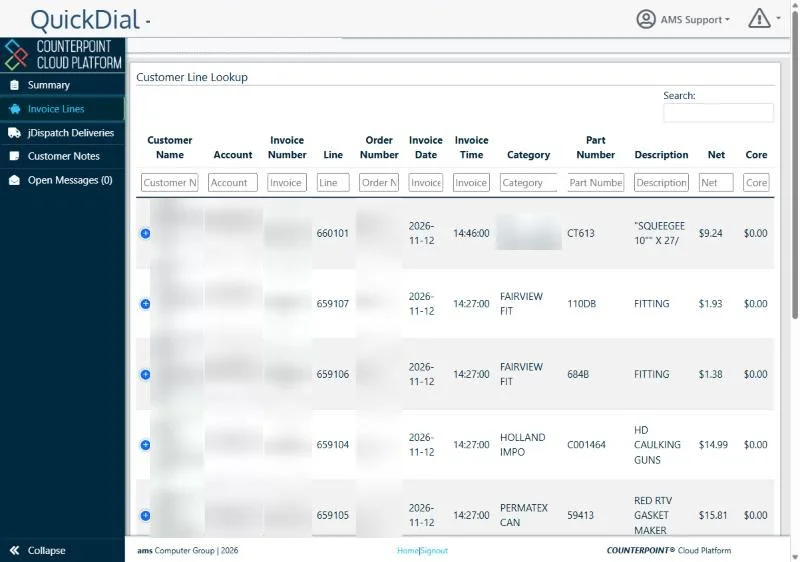
What they usually buy
Invoice Lines lists every part the customer has bought, newest first, with the part number, description and price. When they ask for “the same as last time”, it’s right there. Every column can be searched.
-
 Step 3 of 5
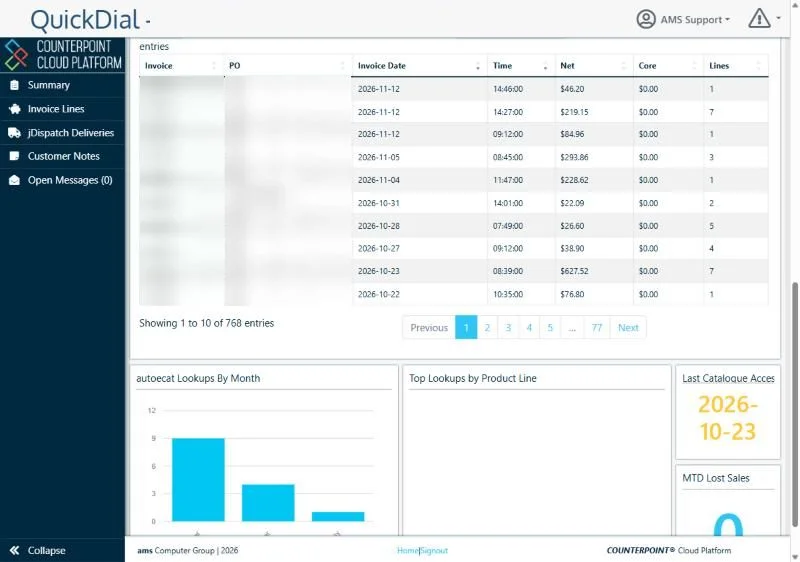
Invoices and catalogue activity
Further down the summary: the customer’s invoice history with PO numbers and totals. If they use autoecat, you also see their lookups by month and when they last opened the catalogue.
-
 Step 4 of 5
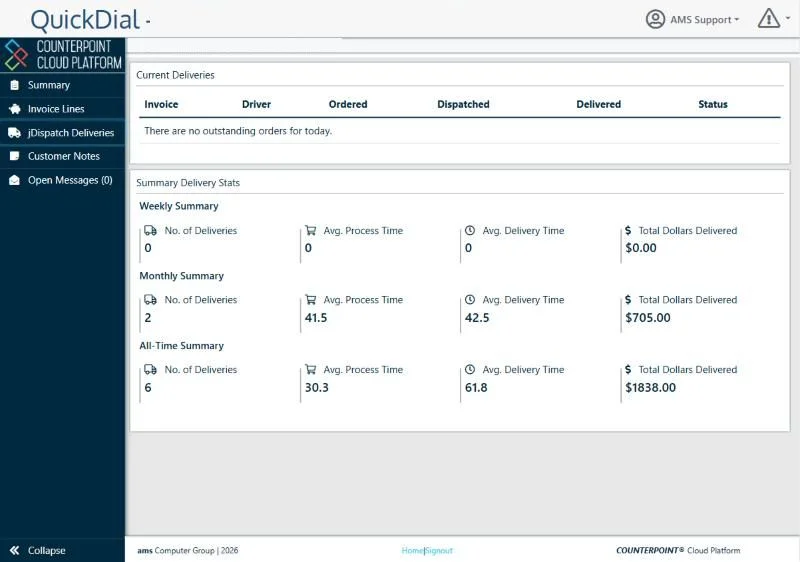
“Where’s my order?”
With jDispatch, one click shows today’s deliveries for this customer, with the driver and status, plus their delivery numbers for the week, the month and all time.
-
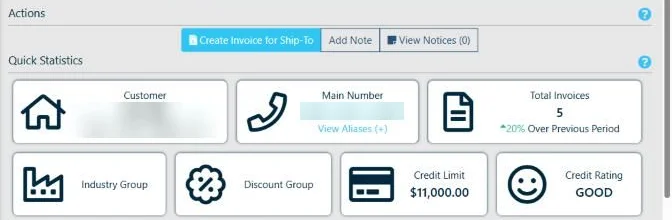 Step 5 of 5
One click to start the sale
The Actions bar works as this customer: start an invoice, add a note the whole team can see, or check notices. Nobody has to look the account up twice.
Could this work at your store?
We’ll walk you through it live, set up the way your business runs.