
autoecat: more ways to find the part
Start from a VIN, jump back to a recent vehicle, pick brakes from a diagram, check every branch, and look up filters and fluid specs.
-
 Step 1 of 6
Start from the VIN
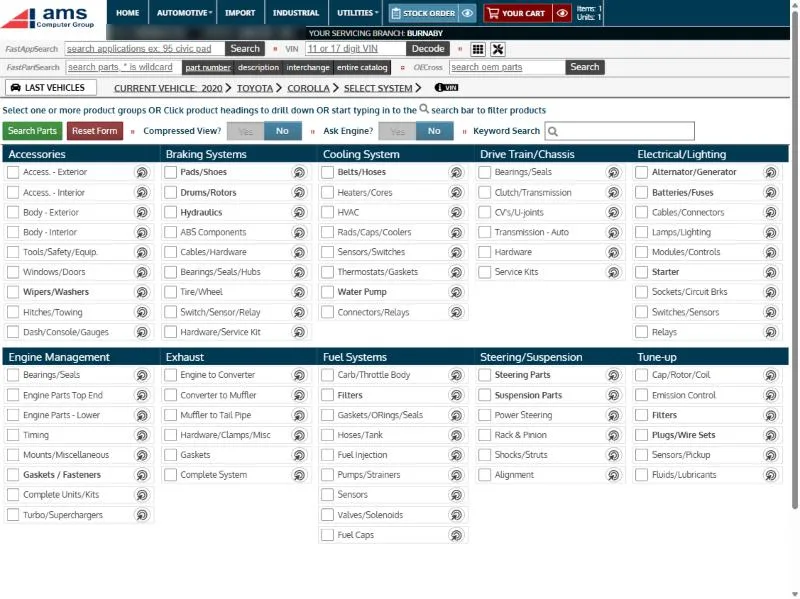
Enter the VIN and click Decode. This one opens a 2020 Toyota Corolla, ready to pick parts, without asking the customer what engine it has.
-
 Step 2 of 6
Back to a recent vehicle in one click
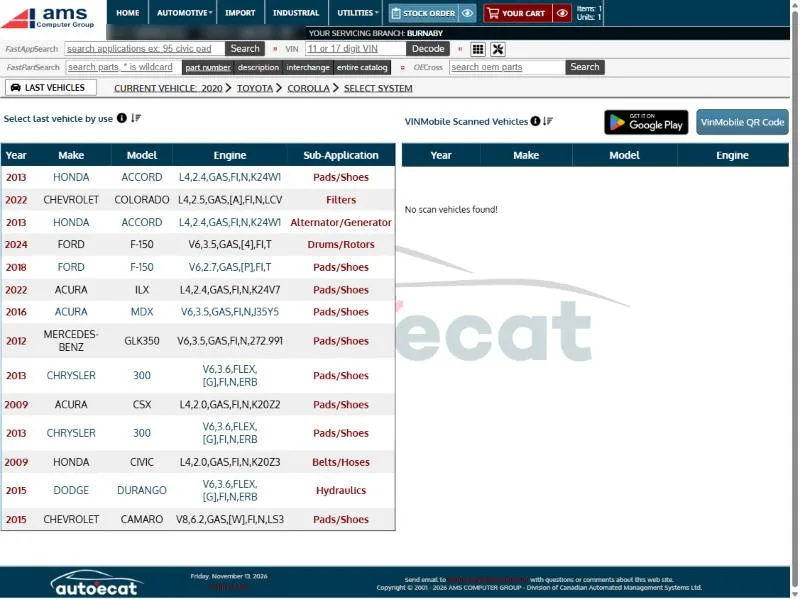
Recent vehicles are listed with the part type last searched. VINs scanned at the shop with the VINMobile phone app appear beside them.
-
 Step 3 of 6
Diagrams for whole systems
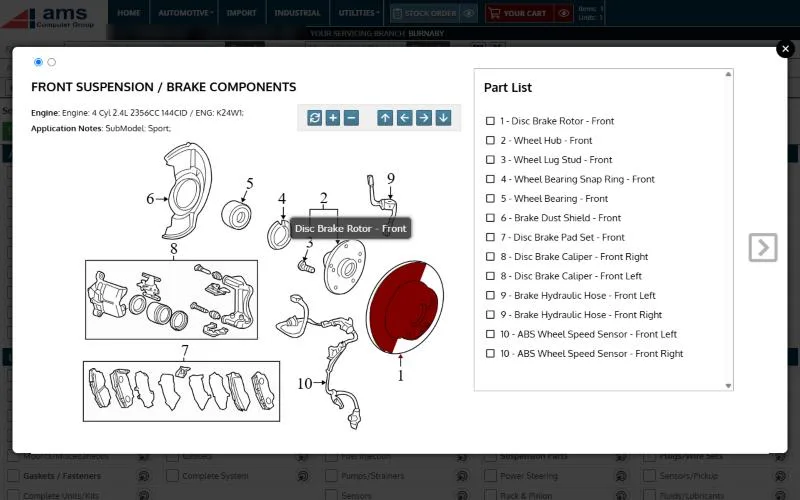
The bulls-eye works for every parts group. Here, the front brakes: point at the rotor, pads, caliper or hub and it lights up with its name.
-
 Step 4 of 6
Stock at every branch and the warehouse
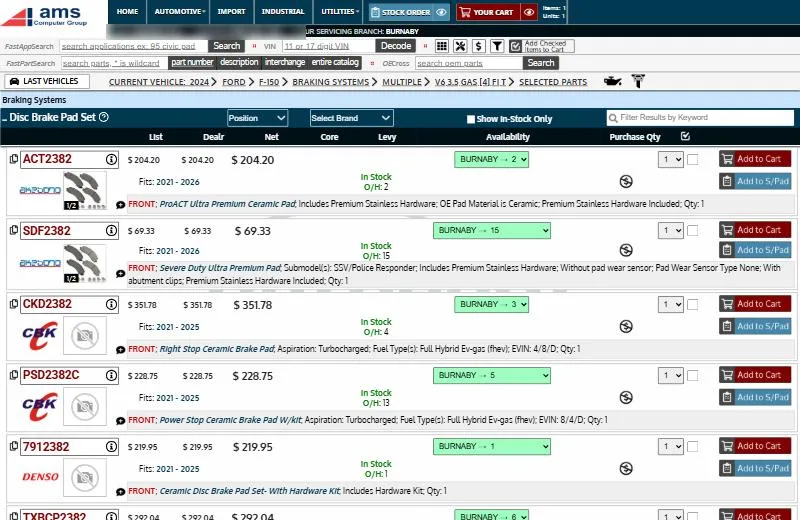
Results show stock at every branch by name. autoecat can also check your distributors’ warehouses live. Parts with none on hand say “Pls Call”.
-
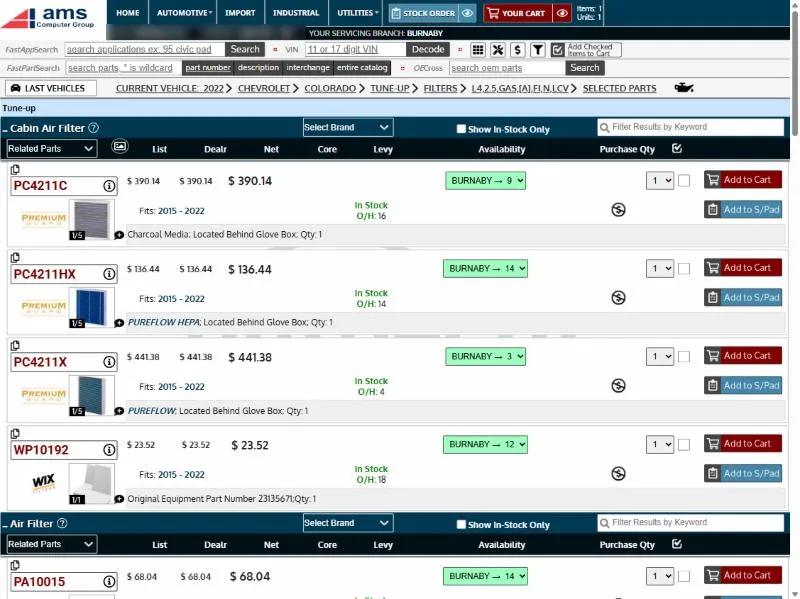 Step 5 of 6
Maintenance parts in seconds
Filters for a 2022 Chevrolet Colorado: cabin and air filters with the shop’s price, stock and the OE number.
-
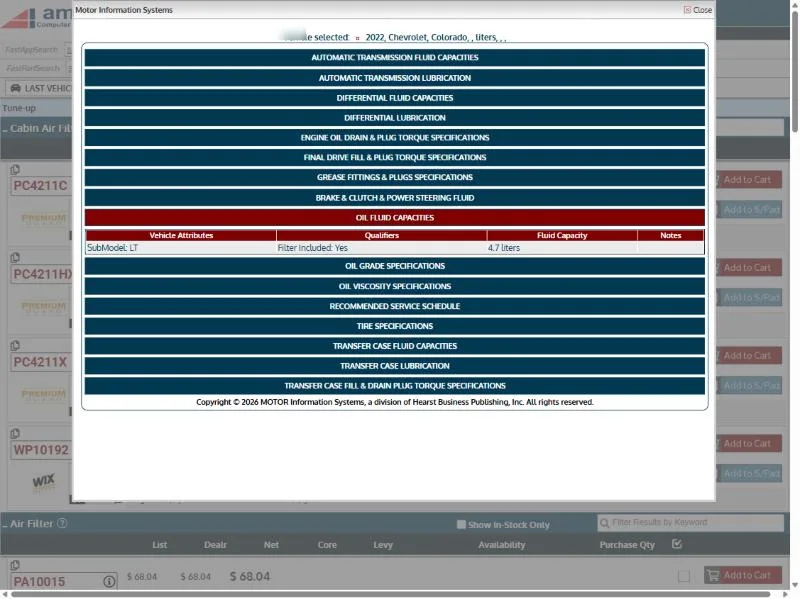 Step 6 of 6
Fluid specs for the vehicle
The oil can opens fluid specifications for the vehicle: oil capacity and grade, transmission, differential, service schedule, tire sizes and more.
Could this work at your store?
We’ll walk you through it live, set up the way your business runs.